How to Trade Futures Automatically From a TradingView Chart

Heads up: some links below are affiliate links. If you sign up through them we may earn a commission at no extra cost to you - it never changes what we recommend.
Four steps. (1) Line up the pieces - a paid TradingView plan with 2FA, a Tradovate account, and a strategy (yours or a done-for-you app). (2) Connect a bridge so a TradingView alert reaches your broker. (3) Test with a single micro contract and confirm the fill lands in Tradovate. (4) Go live with a daily loss limit and fixed size. Do them in order and a chart signal becomes an automatic trade - safely.
The LPFT Copilot bundles the strategy and the automation, so you go straight to “connect Tradovate and go.” Start a 7-day free trial and watch it trade your account.
Start your 7-day free trialBefore you start: the pieces you need
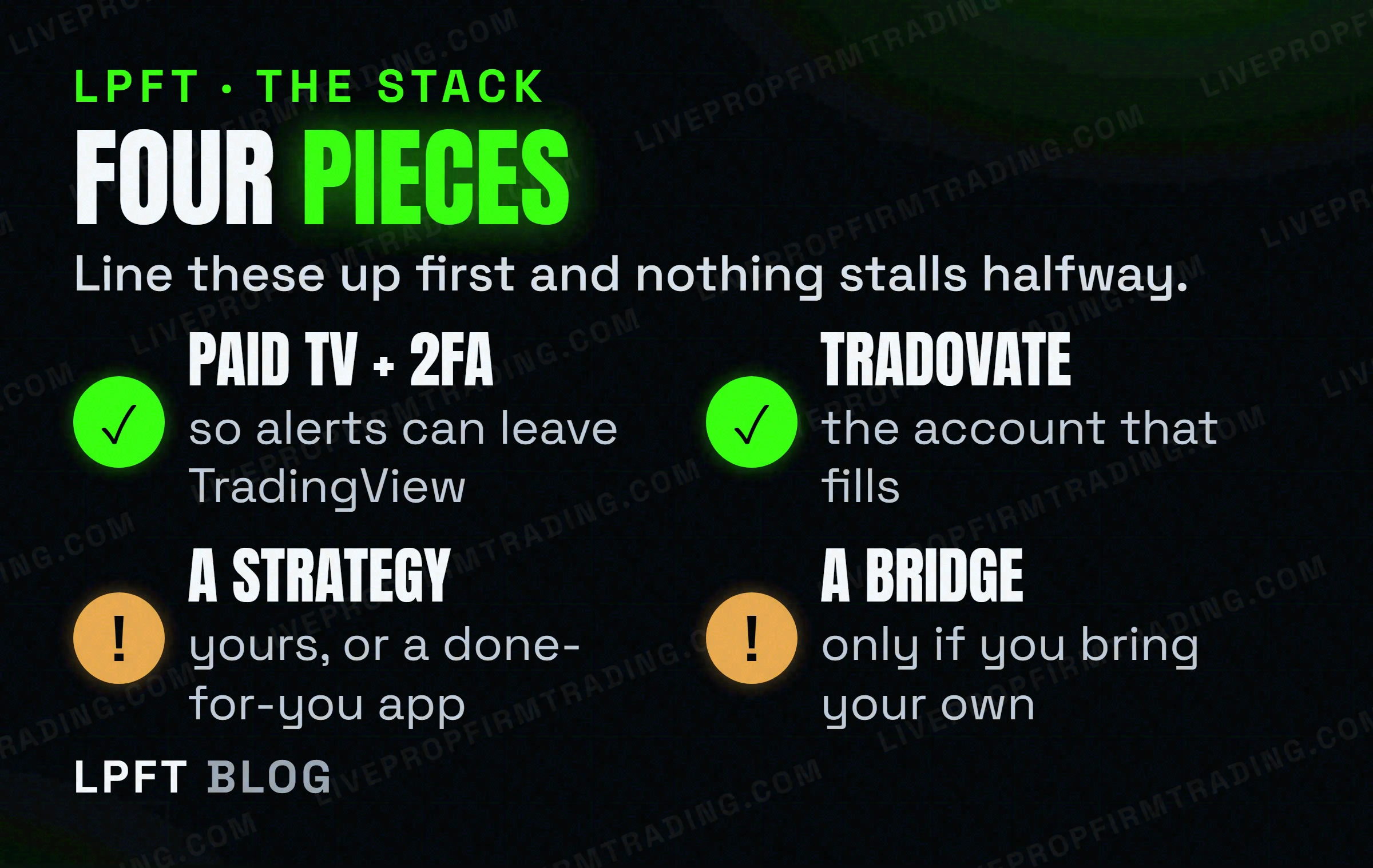
Automation isn't one product, it's a short stack. Gather these first so nothing stalls halfway:
- A paid TradingView plan with 2FA on. Webhook alerts - the thing that lets a signal leave TradingView - need a paid tier (Essential and up) and two-factor authentication enabled.
- A Tradovate account. Live or a prop-firm account where the firm supports the Tradovate API.
- A strategy. Either one you've built and backtested, or a done-for-you app that brings its own.
- A bridge (only if you're using your own strategy) - a service like TradersPost that turns the alert into an order.
If you're bringing your own strategy, follow steps 1 - 4. If you'd rather not build or wire anything, a done-for-you app collapses steps 1 - 3 into “download and connect” - jump to the last section.
Step 1 - Build (or pick) the strategy and its alert
Automation only makes a strategy run faster - it doesn't make it good, so start with something you've tested. Create an alert on it and, in the alert's Message box, paste the JSON template your bridge provides (action, ticker, quantity). Full detail on the message lives in turning alerts into trades; if it's a Pine strategy(), see auto-executing a strategy.
Step 2 - Connect the bridge to Tradovate
Sign up for the bridge, copy its webhook URL, and paste it into your TradingView alert's Webhook URL box. Then connect the bridge to your Tradovate account once (an authorization step). From now on, every alert becomes a message the bridge turns into a real order.
TradersPost gives you the webhook URL and the Tradovate connection. There's a free trial.
Set up TradersPost →Step 3 - Test with a single micro contract
Do not go straight to full size. Set your strategy or alert to one micro contract and let it fire once. Then check Tradovate and confirm the position actually appeared. This one test catches 90% of problems - a wrong symbol, an unchecked webhook box, a dropped broker link - while the cost of a mistake is a few cents, not your account.
Step 4 - Go live with guardrails
Once one micro contract works end to end, you can scale - but add the guardrails first, because automation follows rules without flinching, including on a losing day:
- Set a daily loss limit in Tradovate's risk settings - a hard floor the bot can't cross.
- Fix your size. Same number of contracts every trade; don't let a script “average down.”
- Define when it runs. A session window (e.g. only during liquid hours) keeps it out of thin, erratic markets.
- Watch the first sessions. Sit with it live for a few days before you leave it fully unattended.
Futures carry a substantial risk of loss. A bridge will execute a bad signal as faithfully as a good one. Keep the daily loss limit on, and never automate more size than you'd trade by hand.
The shortcut: a done-for-you app
If steps 1 - 3 sound like more than you signed up for, that's exactly what a done-for-you app solves. The LPFT Copilot already contains tested strategies and connects to Tradovate directly - you install NinjaTrader and the app, add the LPFT bot, connect the broker, and the session window, sizing and daily loss logic are already built in. Same destination, far fewer moving parts to get wrong.
Frequently asked questions
Yes - TradingView fires the signal and a bridge (or a done-for-you app) places the order on a broker like Tradovate. TradingView can't place the order itself, so the bridge is the essential middle piece.
A paid TradingView plan with 2FA, a Tradovate account, a strategy (yours or an app's), and a bridge if you're using your own strategy. A done-for-you app replaces the strategy-and-bridge steps.
Fire the automation once with a single micro contract and confirm the fill appears in Tradovate before you scale. Then add a daily loss limit and fixed sizing in your broker's risk settings.
No. Using a cloud bridge or a done-for-you app is entirely no-code. Coding is only needed if you write your own Pine strategy or talk to the broker API directly.
Yes. Futures carry a substantial risk of loss, and automation executes rules without judgment. Test in a demo, start with one micro contract, and always run a hard daily loss limit.
Eli Y.
Eli builds and runs rules-based automated futures systems on NinjaTrader and Tradovate, and helps traders take emotion out of the screen. He writes about futures automation, prop-firm evaluations, and the tools that connect them - plainly, and without hype.
Risk disclosure: Trading futures involves substantial risk of loss and is not suitable for everyone. This article is educational content only and is not financial advice or a recommendation to trade. Past performance is not indicative of future results. Some links are affiliate links.