How to Turn TradingView Alerts Into Real Automated Trades

Heads up: some links below are affiliate links. If you sign up through them we may earn a commission at no extra cost to you - it never changes what we recommend.
An alert can't place a trade by itself - a bridge does. TradingView fires an alert (a message) the instant your condition triggers; a webhook sends that message to a service like TradersPost, which submits the matching order to your Tradovate account. Set up three things - the alert, the webhook URL, and the broker connection - and every signal becomes a live order. Or skip the wiring entirely with a done-for-you app like the LPFT Copilot.
Don't want to build the alert-to-order plumbing yourself? The LPFT Copilot runs a tested, rules-based method on your own prop firm or Tradovate account. Start a 7-day free trial.
Start your 7-day free trialFirst, the thing nobody tells you: an alert is just a message
If you've ever set a TradingView alert and expected a trade to appear in your broker, you already found the catch. A TradingView alert notifies - it pops a sound, an email, or an app notification. It does not, and cannot, place an order. TradingView is a charting and alerting platform; it holds no brokerage account and has no path to your broker on its own.
That's not a flaw - it's the design. The job of turning “a signal happened” into “an order was placed” belongs to a separate piece called a bridge. Once you see the alert as a message and the bridge as the thing that acts on it, the whole setup stops feeling like magic and starts feeling like plumbing you can actually lay.
TradingView decides. The bridge acts. Your broker fills. Miss the middle piece and nothing trades.
The three pieces you actually wire up
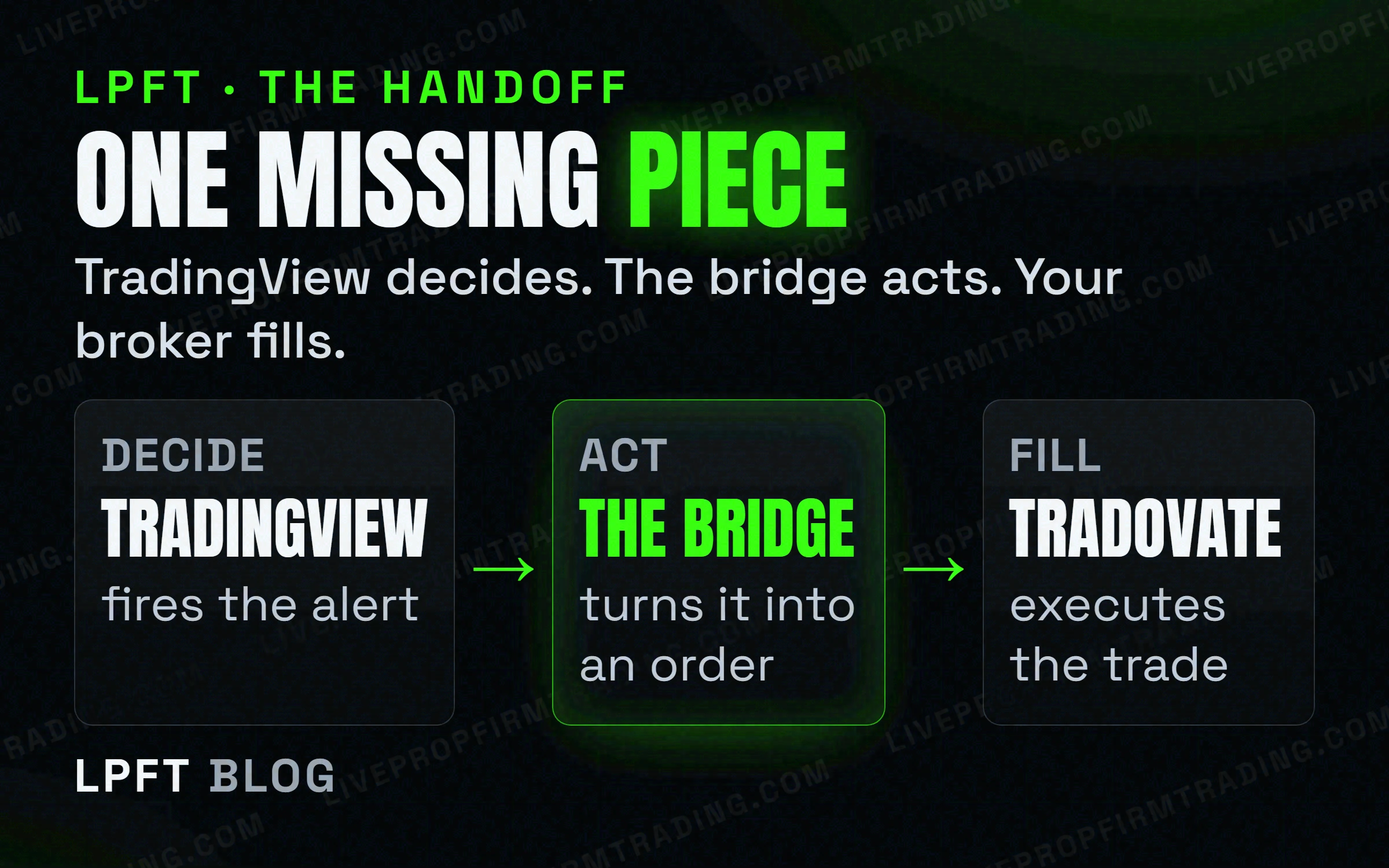
There are exactly three moving parts. Get each one right, in order, and a chart signal becomes a filled contract without you touching the mouse.
1. The alert - and the message inside it
You create an alert on your indicator or strategy the normal way. The part that matters for automation is the message field: this is the text a bridge reads to know what to do. Most bridges expect a small block of JSON - the action (buy or sell), the ticker, and the quantity. You don't need to be a coder; the bridge gives you a template to paste and adjust.
Two setup requirements catch people out. TradingView only sends webhook alerts on a paid plan (Essential and up, not the free Basic tier), and only when two-factor authentication is switched on. Turn those on once and you're clear.
2. The webhook URL - the address the message is sent to
A webhook is just a delivery address. When your alert fires, TradingView sends the message as an HTTP request to whatever URL you pasted into the Webhook URL box. Point it at a broker bridge and the message lands where something can act on it. (Want the full mechanics? We break webhooks down in TradingView webhooks, explained.)
3. The broker connection - where the order actually lands
Finally, the bridge needs to know your account. You connect it once to Tradovate (directly, or your prop-firm account where the firm supports the Tradovate API), and from then on every message it receives becomes a real order on that account. Fill speed after that is just normal market behaviour - the same as if you'd clicked buy yourself.
A bridge that does the middle piece: TradersPost
The most common way to wire this up is TradersPost, a cloud service that receives your TradingView webhook and routes the order to your broker. Tradovate is explicitly supported. You create the alert, paste TradersPost's webhook URL, connect Tradovate once, and your signals trade themselves. You keep full control - which also means the strategy's quality and your risk settings stay your responsibility.
TradersPost bridges a TradingView alert to a live Tradovate order. Setup takes an afternoon.
Try TradersPost →Three mistakes that stop the trade
- The webhook box was left unchecked. An alert with a message but no webhook URL just notifies you - it never leaves TradingView. Re-open the alert and confirm the URL is in the Webhook field.
- The message doesn't match the bridge's format. A stray comma or the wrong field name and the bridge rejects it. Start from the bridge's template and change only the values.
- Wrong symbol or size. The order routes exactly as written. A typo trades the wrong contract or quantity - test with a single micro contract before you scale up.
Automation follows rules without flinching - including a bad day. Set a daily loss limit in Tradovate's risk settings and test in a demo first. A system that can't stop itself will happily trade you past your limit.
Or skip all three: the done-for-you route
Most people don't actually want to build alert plumbing - they want the outcome. The LPFT Copilot is a small app that already contains tested, rules-based strategies. You install NinjaTrader and the app, add the LPFT bot, and connect Tradovate. No alert messages and no chart-watching, and you paste your bot link once. The strategy and the automation come in one package, with the risk rules and session windows already built in.
Frequently asked questions
Not on its own. An alert is a message - it notifies you. To place a trade you add a webhook that sends the message to a broker bridge (like TradersPost), which submits the order to your Tradovate account.
For webhook alerts, yes. Webhook notifications are available on the paid tiers (Essential and up), not the free Basic plan, and you must have two-factor authentication enabled on your TradingView account.
No. The alert message is a small block of text the bridge gives you as a template - you paste it and adjust the values. Connecting the bridge to Tradovate is a one-time, no-code setup.
The bridge submits the order to Tradovate the moment it receives the alert. Fill speed from there depends on the market and your order type - exactly as it would for an order you placed by hand.
Automation removes emotion, not risk. Futures carry a substantial risk of loss. Set a daily loss limit in Tradovate, test in a demo first, and never automate more size than you'd trade manually.
Eli Y.
Eli builds and runs rules-based automated futures systems on NinjaTrader and Tradovate, and helps traders take emotion out of the screen. He writes about futures automation, prop-firm evaluations, and the tools that connect them - plainly, and without hype.
Risk disclosure: Trading futures involves substantial risk of loss and is not suitable for everyone. This article is educational content only and is not financial advice or a recommendation to trade. Past performance is not indicative of future results. Some links are affiliate links.